
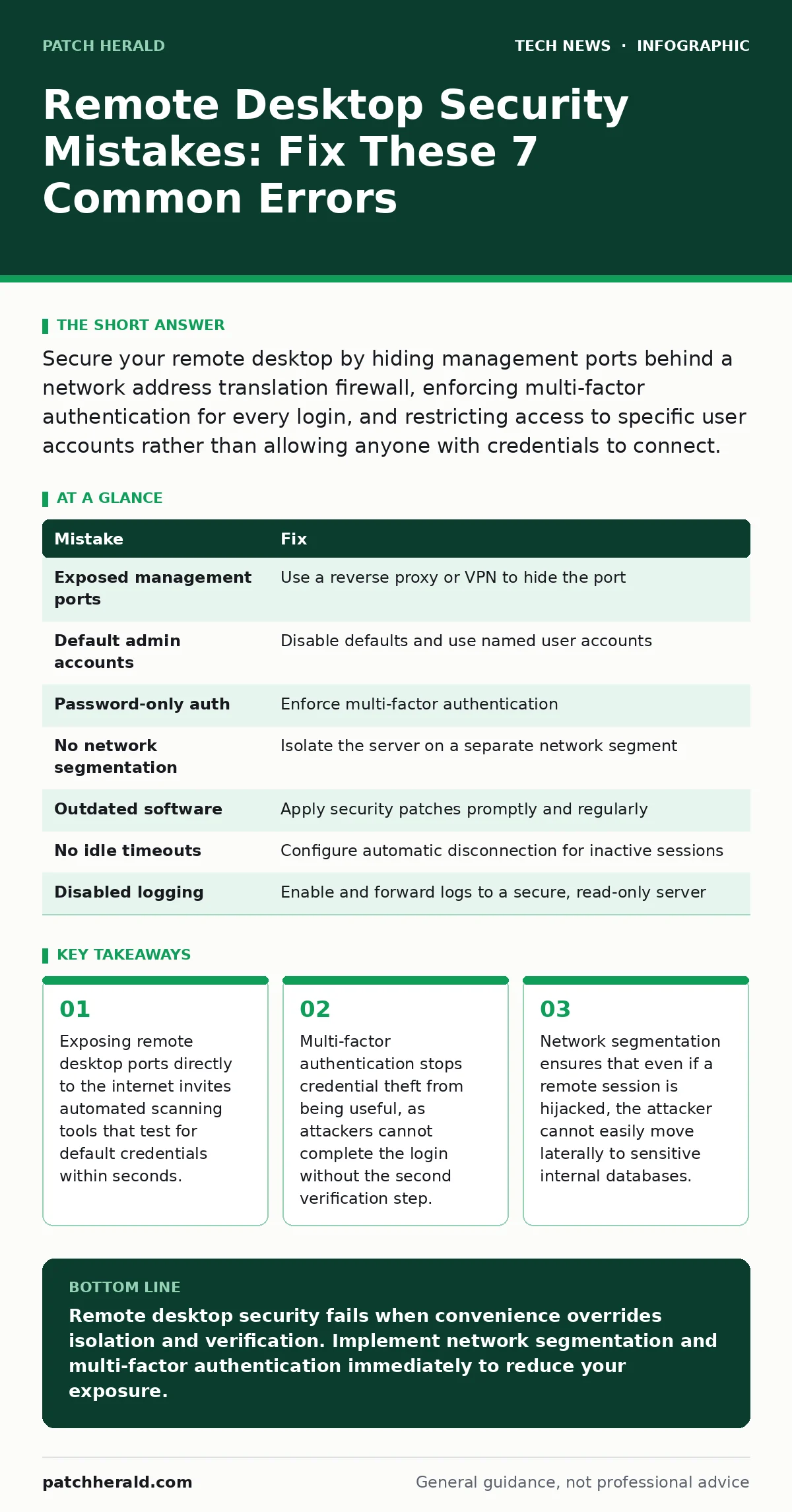
Secure your remote desktop by hiding management ports behind a network address translation firewall, enforcing multi-factor authentication for every login, and restricting access to specific user accounts rather than allowing anyone with credentials to connect.
Mistake 1: Leaving the Management Port Open to the Public Internet
Many administrators assume that a firewall is sufficient if it blocks common web ports. They often forget that remote desktop protocols use specific ports that must remain open for legitimate access. When these ports face the public internet, automated bots scan for them continuously.
Why it hurts:
Exposing these ports creates a permanent target for credential stuffing attacks. Attackers do not need to guess your password; they use lists of leaked credentials from other sites to try logging in. If you reuse passwords, the breach is immediate. The volume of attempts is so high that manual monitoring is impossible.
The fix:
Place your remote desktop service inside a network address translation firewall that blocks inbound traffic from unknown sources. Only allow connections through a virtual private network or a reverse proxy that sits between the attacker and your server. This adds a layer of identity verification before the remote desktop service even receives a connection request. For more on securing external access points, see our guide on remote work security.
Mistake 2: Using Default or Predictable Administrator Accounts
Default accounts often have simple names and no history of activity, making them easy targets. Administrators frequently leave the built-in administrator account active and accessible for remote logins. This account is the first one attackers try because they know it exists.
Why it hurts:
Default accounts are known quantities. Attackers script their tools to target "admin" or "administrator" first. If this account has high privileges, a single successful login grants full control over the machine. You lose the ability to audit who did what, because the account is shared and generic.
The fix:
Disable the default administrator account for remote use. Create named user accounts for each person who needs access. Rename the built-in administrator account to something non-descript if you must keep it enabled for local maintenance. Ensure that only specific, named users are added to the group that allows remote desktop connections.
Mistake 3: Relying Solely on Passwords for Authentication
Passwords are static secrets that can be stolen, guessed, or intercepted. Many setups accept a password as the only proof of identity. This is a single point of failure that breaks the moment the password is compromised.
Why it hurts:
If an attacker obtains your password through phishing or a data breach elsewhere, they have complete access to your remote desktop. Passwords do not prove you are the person typing them, only that you know the secret. This allows attackers to impersonate you from any location in the world.
The fix:
Enforce multi-factor authentication. This requires a second form of verification, such as a code from a mobile app or a hardware token, in addition to the password. This ensures that even if the password is stolen, the attacker cannot log in without physical possession of your device. For related credential hygiene, review our guide on SSH key management.
Mistake 4: Ignoring Network Segmentation
Flat networks allow any connected device to talk to any other device. When a remote desktop is placed on the same network segment as sensitive data or other servers, it shares the same trust level. A breach in one area spreads instantly to all.
Why it hurts:
If an attacker compromises the remote desktop session, they can scan the internal network for other vulnerabilities. Without segmentation, they can move laterally to databases, file servers, or domain controllers. The remote desktop becomes a beachhead for a wider network intrusion.
The fix:
Isolate the server hosting the remote desktop on a separate network segment. Use firewall rules to restrict what that server can reach. It should only communicate with necessary services, not with the entire internal network. This limits the blast radius of a successful compromise.
Mistake 5: Running Outdated Software Versions
Remote desktop software receives regular security updates to fix discovered vulnerabilities. Administrators often delay these updates to avoid potential downtime or compatibility issues. This leaves known holes open for exploitation.
Why it hurts:
Attackers prioritize targets with known, unpatched vulnerabilities. They have tools that can exploit these flaws automatically, often without needing a password. Running old software is equivalent to leaving a door unlocked with a sign that says "Enter Here."
The fix:
Establish a routine for testing and applying security patches promptly. Verify that both the client software and the server software are current. If automatic updates cause instability, test them in a isolated environment before deploying to production. For broader software hygiene, see our guide on open-source software security.
See also: Load Balancers Types: How Traffic Distribution Protects Your Systems · Network Monitoring Protocols: How They Work and Why They Fail
Mistake 6: Failing to Configure Idle Timeouts
Sessions that remain active after the user walks away are vulnerable. Many configurations allow a remote session to stay open indefinitely, even if the user has closed their local client. The session remains connected on the server side.
Why it hurts:
An active session is an authenticated session. If an attacker gains access to the network or the server, they can hijack the idle session without needing credentials. They inherit the privileges of the logged-in user immediately. This bypasses many detection mechanisms that look for new logins.
The fix:
Set a strict idle timeout policy. Configure the server to disconnect sessions after a short period of inactivity, such as five minutes. This forces the attacker to re-authenticate, which triggers multi-factor authentication and increases the chance of detection.
Mistake 7: Disabling Session Logging and Auditing
Without logs, you cannot detect unauthorized access. Many administrators disable detailed logging to save disk space or simplify management. This leaves you blind to who connected and when.
Why it hurts:
If a breach occurs, you will not know how it happened or when it started. You cannot correlate the incident with other events. This delays response and recovery, allowing the attacker more time to exfiltrate data or install malware.
The fix:
Enable detailed logging for all connection attempts, both successful and failed. Send these logs to a separate, secure server that attackers cannot tamper with. Review these logs regularly for patterns, such as multiple failed attempts from a single source. For certificate verification, see our guide on Certificate Transparency.
| Mistake | Fix |
|---|---|
| Exposed management ports | Use a reverse proxy or VPN to hide the port |
| Default admin accounts | Disable defaults and use named user accounts |
| Password-only auth | Enforce multi-factor authentication |
| No network segmentation | Isolate the server on a separate network segment |
| Outdated software | Apply security patches promptly and regularly |
| No idle timeouts | Configure automatic disconnection for inactive sessions |
| Disabled logging | Enable and forward logs to a secure, read-only server |
Key takeaways
- Exposing remote desktop ports directly to the internet invites automated scanning tools that test for default credentials within seconds.
- Multi-factor authentication stops credential theft from being useful, as attackers cannot complete the login without the second verification step.
- Network segmentation ensures that even if a remote session is hijacked, the attacker cannot easily move laterally to sensitive internal databases.
Remote desktop security fails when convenience overrides isolation and verification. Implement network segmentation and multi-factor authentication immediately to reduce your exposure.
Frequently asked questions
Is changing the default remote desktop port enough to secure the service?
No, changing the port only hides the service from casual scanners. Automated tools still discover it, and you lose the benefit of standard monitoring tools that expect the default port.
Can multi-factor authentication be bypassed if the attacker is already on the network?
If the attacker has physical access to the machine or has hijacked an active session, MFA may be bypassed. This is why idle timeouts and network segmentation are critical complementary controls.
How do I balance security with ease of access for employees?
Use a centralized identity provider that integrates multi-factor authentication seamlessly. This allows users to log in with one set of credentials while maintaining strong security controls on the backend.
Should I disable remote desktop entirely if I only use it occasionally?
Disabling it removes the attack surface completely. If you need occasional access, enable it only when required and disable it immediately after, or use a just-in-time access model that grants temporary permissions.
How this guide was produced: written by the Patch Herald editorial team with AI assistance, checked against the public references listed below, and reviewed when the facts change. See our editorial policy or report an error.