
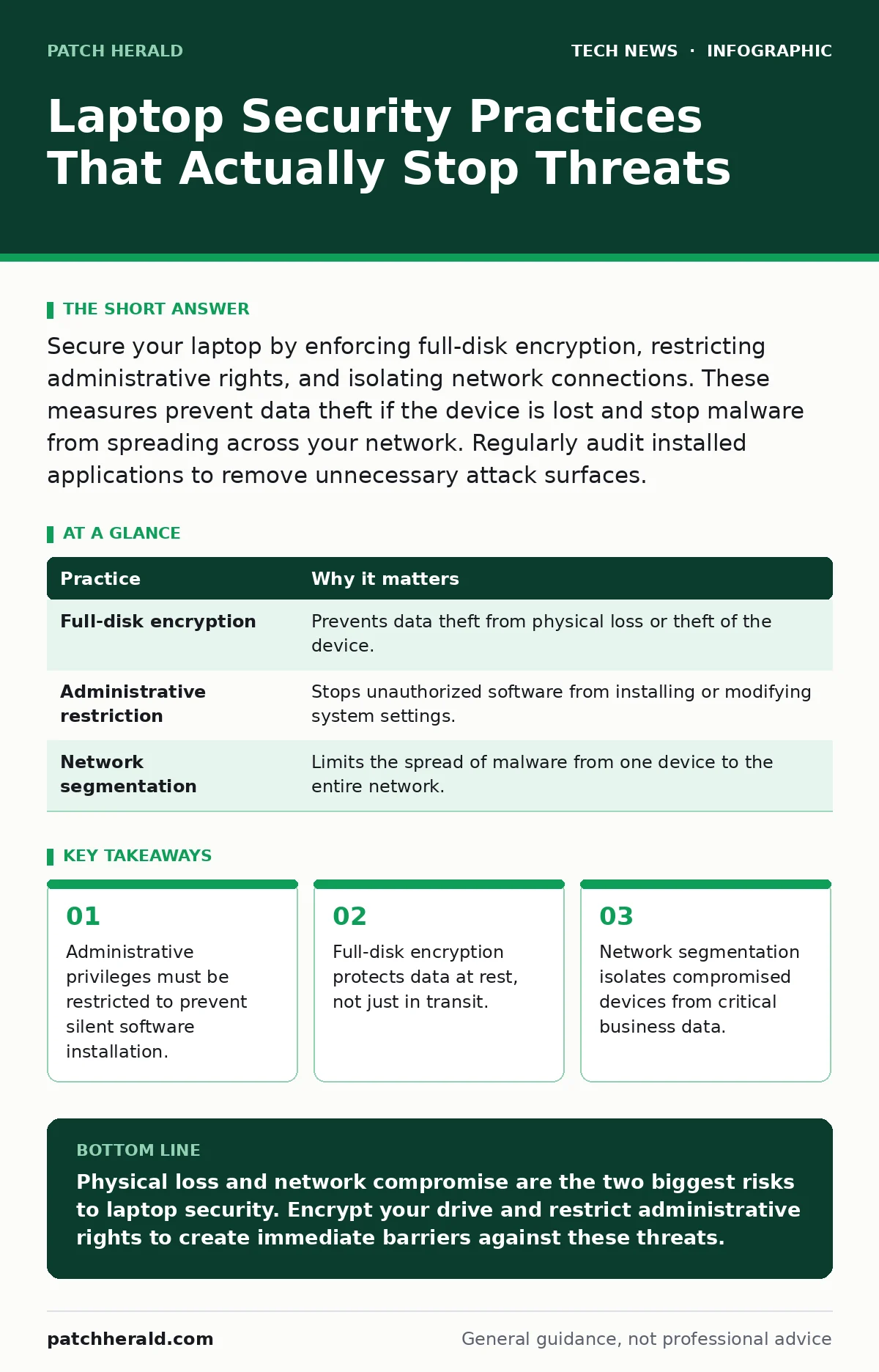
Secure your laptop by enforcing full-disk encryption, restricting administrative rights, and isolating network connections. These measures prevent data theft if the device is lost and stop malware from spreading across your network. Regularly audit installed applications to remove unnecessary attack surfaces.
Enforce Full-Disk Encryption Immediately
Full-disk encryption transforms readable data into ciphertext that is useless without a decryption key. This mechanism ensures that if a laptop is stolen or lost, the thief cannot access the files stored on the drive. Without encryption, physical access to the hardware grants immediate access to every document and credential stored on it. The encryption process happens transparently in the background, requiring only a single password or biometric check at startup.
Most modern operating systems include built-in encryption tools that are free to use. You do not need to purchase additional software to secure the drive. However, you must ensure the feature is active and configured to require authentication before the operating system loads. If the system boots without asking for a password, the encryption key may already be in memory, rendering the protection ineffective.
| Practice | Why it matters |
|---|---|
| Full-disk encryption | Prevents data theft from physical loss or theft of the device. |
| Administrative restriction | Stops unauthorized software from installing or modifying system settings. |
| Network segmentation | Limits the spread of malware from one device to the entire network. |
Restrict Administrative Privileges
Every user account on a laptop typically has two levels of access: standard user and administrator. Standard users can run applications but cannot install new software or change system-wide settings. Administrators have full control, allowing them to modify the operating system kernel and install drivers. When you log in as an administrator for daily tasks, any malicious script you accidentally run also gains full control of the machine.
Create a separate standard user account for daily work. Use the administrator account only when you need to install legitimate software or update system configurations. This separation creates a barrier that malware must breach to gain persistent access to the system. If a malicious program tries to install itself, the operating system will prompt for an administrator password, stopping the process unless you explicitly approve it.
Isolate Network Connections
When you connect a laptop to a network, it becomes part of that network's trust domain. Public Wi-Fi networks often lack proper authentication, allowing attackers on the same network to intercept unencrypted traffic. Even on private networks, a compromised laptop can scan for other devices and attempt to exploit vulnerabilities in shared services. Network segmentation divides the network into smaller zones, limiting what devices can communicate with each other.
Use a virtual private network when connecting to untrusted networks. A VPN creates an encrypted tunnel between your laptop and a remote server, hiding your traffic from local observers. For home or office networks, ensure that your Wi-Fi router supports WPA3 security. This protocol provides stronger protection against brute-force attacks than older standards. If your devices do not support WPA3, consider setting up guest Wi-Fi networks for visitors to keep them isolated from your main infrastructure.
Automate Operating System Updates
Software vulnerabilities are discovered regularly by researchers and exploited by attackers. Vendors release patches to fix these weaknesses, but these updates only help if you install them. Many users delay updates to avoid interruptions or because they fear breaking existing workflows. This delay leaves the system exposed to known exploits that are widely available in cybercriminal toolkits.
Configure your operating system to download and install updates automatically. For critical security patches, set the system to reboot automatically if no one is using the computer for a set period. This ensures that the protection is applied without relying on human memory. Regular operating system hardening practices also involve disabling unused services and ports that could serve as entry points for attackers.
Verify Software Sources
Installing software from unofficial sources is one of the most common ways malware enters a system. Official app stores and vendor websites sign their software with digital certificates that verify the publisher's identity. When you install unsigned or poorly signed software, you are trusting the code without any verification of its origin or integrity. Open-source software security relies on community review, but you must still download from official repositories to avoid tampered versions.
Always download applications from the developer's official website or a trusted app store. Check the digital signature of the installer before running it. Most operating systems will warn you if the signature is invalid or if the publisher cannot be verified. If you are unsure about a program's legitimacy, search for recent reports or discussions about it before installation. Avoid downloading cracked versions of commercial software, as these are frequently bundled with malware.
See also: Difference Between Operating System and Kernel: Core Functions Explained · Can IP Addresses Be Traced? How Visibility Works
Implement Multi-Factor Authentication
Passwords alone are insufficient for securing a laptop because they can be guessed, stolen, or reused across multiple services. Multi-factor authentication requires two or more forms of verification to grant access. Typically, this combines something you know (a password) with something you have (a smartphone or hardware key) or something you are (a fingerprint). This adds a layer of defense that attackers cannot bypass by stealing credentials alone.
Enable multi-factor authentication on your laptop login and any cloud services you access from it. Use an authenticator app or a hardware security key instead of SMS codes, which can be intercepted through SIM swapping. This practice ensures that even if an attacker obtains your password, they cannot access your account without the second factor. It is a simple change that significantly raises the barrier for unauthorized access.
Backup Data to Disconnected Storage
Ransomware encrypts files on your laptop and demands payment for their release. If your only backup is stored on a network drive or cloud service that is continuously synchronized, the ransomware may also encrypt the backup copies. This renders the backup useless, leaving you with no choice but to pay or lose the data. Disconnected backups, such as external hard drives that are only plugged in during backup times, remain immune to network-based attacks.
Maintain at least two copies of your critical data on external drives that are not connected to the laptop when not in use. Rotate these drives so that at least one copy is always offline. Test the restoration process periodically to ensure that the backups are not corrupted and that you can recover files easily. This strategy protects you against both hardware failure and cyberattacks that target connected storage systems.
Key takeaways
- Administrative privileges must be restricted to prevent silent software installation.
- Full-disk encryption protects data at rest, not just in transit.
- Network segmentation isolates compromised devices from critical business data.
Physical loss and network compromise are the two biggest risks to laptop security. Encrypt your drive and restrict administrative rights to create immediate barriers against these threats.
Frequently asked questions
Does enabling BitLocker or FileVault protect me from hackers?
Yes, it protects your data if the laptop is stolen or lost, but it does not prevent hackers from accessing your data while the computer is unlocked and running.
Should I use a password manager on my laptop?
Yes, a password manager generates and stores complex, unique passwords for each service, reducing the risk of credential stuffing attacks and password reuse.
How often should I update my laptop software?
You should install security updates as soon as they are released. Configure automatic updates to ensure you do not miss critical patches that fix known vulnerabilities.
Is antivirus software still necessary?
Yes, antivirus software helps detect and block known malware signatures and suspicious behaviors, providing an additional layer of defense alongside system updates and user caution.
How this guide was produced: written by the Patch Herald editorial team with AI assistance, checked against the public references listed below, and reviewed when the facts change. See our editorial policy or report an error.