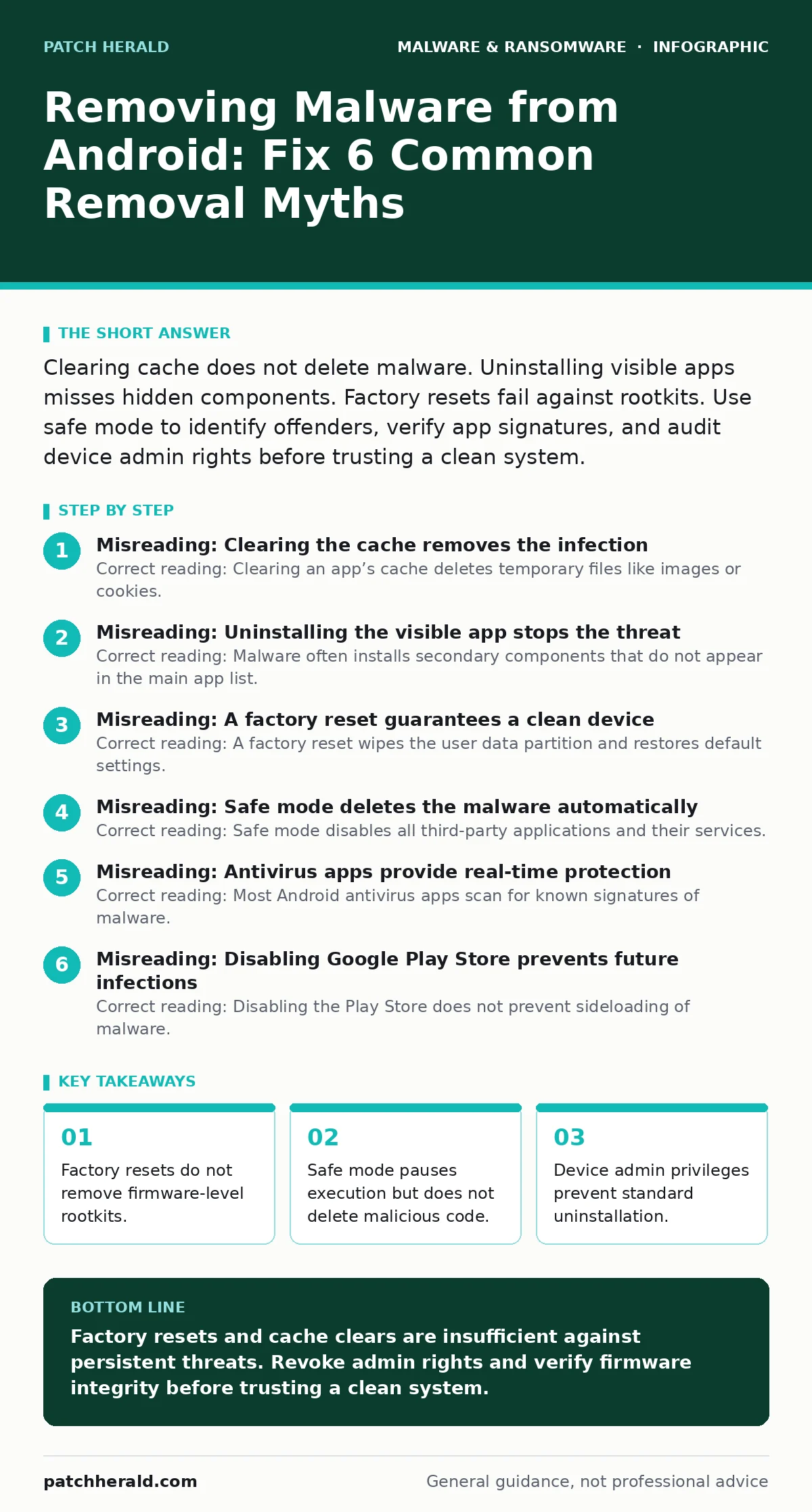
Clearing cache does not delete malware. Uninstalling visible apps misses hidden components. Factory resets fail against rootkits. Use safe mode to identify offenders, verify app signatures, and audit device admin rights before trusting a clean system.
Misreading: Clearing the cache removes the infection
Correct reading: Clearing an app’s cache deletes temporary files like images or cookies. It does not touch the core application package or its executable code. Malware installs persistent services that survive cache wipes. You must uninstall the application entirely to remove the malicious binaries.
Imagine a trojan that harvests SMS messages. It stores the stolen data in a local database, not in the cache. Wiping the cache leaves the harvesting service active. The malware continues to run in the background. Your data exfiltration continues uninterrupted.
Misreading: Uninstalling the visible app stops the threat
Correct reading: Malware often installs secondary components that do not appear in the main app list. These components may have generic names like "System Service" or "Update Helper". They run with high privileges. You must check for unknown apps in the full application settings, including hidden system apps.
Android allows third-party apps to request device administrator rights. Once granted, the app cannot be uninstalled through standard means. You must revoke administrator privileges in the security settings first. Then you can uninstall the malicious package. This step is critical for screen locker ransomware variants.
Misreading: A factory reset guarantees a clean device
Correct reading: A factory reset wipes the user data partition and restores default settings. It does not reflash the firmware or update the bootloader. Sophisticated malware can infect the recovery partition or the firmware itself. These components survive a standard factory reset.
If the malware has root access, it can reinstall itself after the reset. This is known as a rootkit. You must verify the integrity of your device’s bootloader. Use fastboot commands to check for unauthorized modifications. If the bootloader is unlocked or modified, a standard reset will not help. You may need to flash the official firmware manually.
Misreading: Safe mode deletes the malware automatically
Correct reading: Safe mode disables all third-party applications and their services. It does not delete them. It allows you to identify which app is causing issues. If the phone behaves normally in safe mode, a third-party app is the culprit. You must manually uninstall the offending app while in this mode.
Safe mode is a diagnostic tool, not a remediation tool. It pauses execution of non-system apps. This prevents the malware from interfering with your uninstallation efforts. It also stops the malware from communicating with command and control servers. Use this window to audit your installed applications carefully.
Misreading: Antivirus apps provide real-time protection
Correct reading: Most Android antivirus apps scan for known signatures of malware. They do not prevent new, zero-day threats from executing. They rely on a database of known bad files. If the malware is new, the scanner will not detect it.
Behavioral analysis is more effective but resource-intensive. It monitors app actions for suspicious patterns. This can cause battery drain and performance issues. You should use antivirus software as a secondary check, not a primary defense. Rely on Google Play Protect for automated scanning. It checks apps against a vast cloud database.
See also: Removing Malware From a Mac: Benefits, Limits, and Recovery Realities · Fake Antivirus Mistakes That Leave Your Systems Vulnerable
Misreading: Disabling Google Play Store prevents future infections
Correct reading: Disabling the Play Store does not prevent sideloading of malware. Users often install apps from third-party websites. These apps bypass security checks. They may contain malicious code disguised as legitimate software.
Android allows installation from unknown sources. This setting must be managed carefully. Each app can request permission to install other apps. Revoking this permission reduces the attack surface. However, it does not protect against malware installed via phishing links or malicious documents.
Misreading: Updating the OS removes existing malware
Correct reading: Operating system updates patch security vulnerabilities. They do not scan for or remove existing malware. If your device is already infected, an update will not fix it. You must remove the malware first. Then apply the update to close the entry point.
Updates may change file structures or permissions. This can sometimes break malware functionality. However, this is not a reliable removal method. The malware may adapt to the new environment. Always perform a thorough scan before updating. Ensure your backup is clean before restoring data.
Misreading: Deleting SMS messages removes the infection vector
Correct reading: Deleting SMS messages removes the text content. It does not remove the malicious app that the message prompted you to install. The app remains on your device. It continues to operate independently of the message.
Many Android malware variants spread via SMS links. These links lead to download pages for malicious APK files. Once installed, the app has its own persistence mechanisms. It does not need the original message to function. You must uninstall the app, not just delete the message.
Key takeaways
- Factory resets do not remove firmware-level rootkits.
- Safe mode pauses execution but does not delete malicious code.
- Device admin privileges prevent standard uninstallation.
Factory resets and cache clears are insufficient against persistent threats. Revoke admin rights and verify firmware integrity before trusting a clean system.
Frequently asked questions
Can I remove malware without a factory reset?
Yes, if the malware is a standard app. Revoke device admin rights, then uninstall the app in safe mode. This works for most trojans and adware.
Does Google Play Protect remove malware automatically?
It scans installed apps and blocks known threats. It can remove some malicious apps automatically. It does not remove firmware-level rootkits or zero-day exploits.
How do I know if my bootloader is compromised?
Check for unauthorized modifications using fastboot commands. If the bootloader is unlocked without your consent, assume the firmware is infected. A standard reset will not help.
Should I use a third-party antivirus app?
Use it as a secondary check. It provides an additional layer of signature-based scanning. It does not replace system-level security or behavioral monitoring.
How this guide was produced: written by the Patch Herald editorial team with AI assistance, checked against the public references listed below, and reviewed when the facts change. See our editorial policy or report an error.