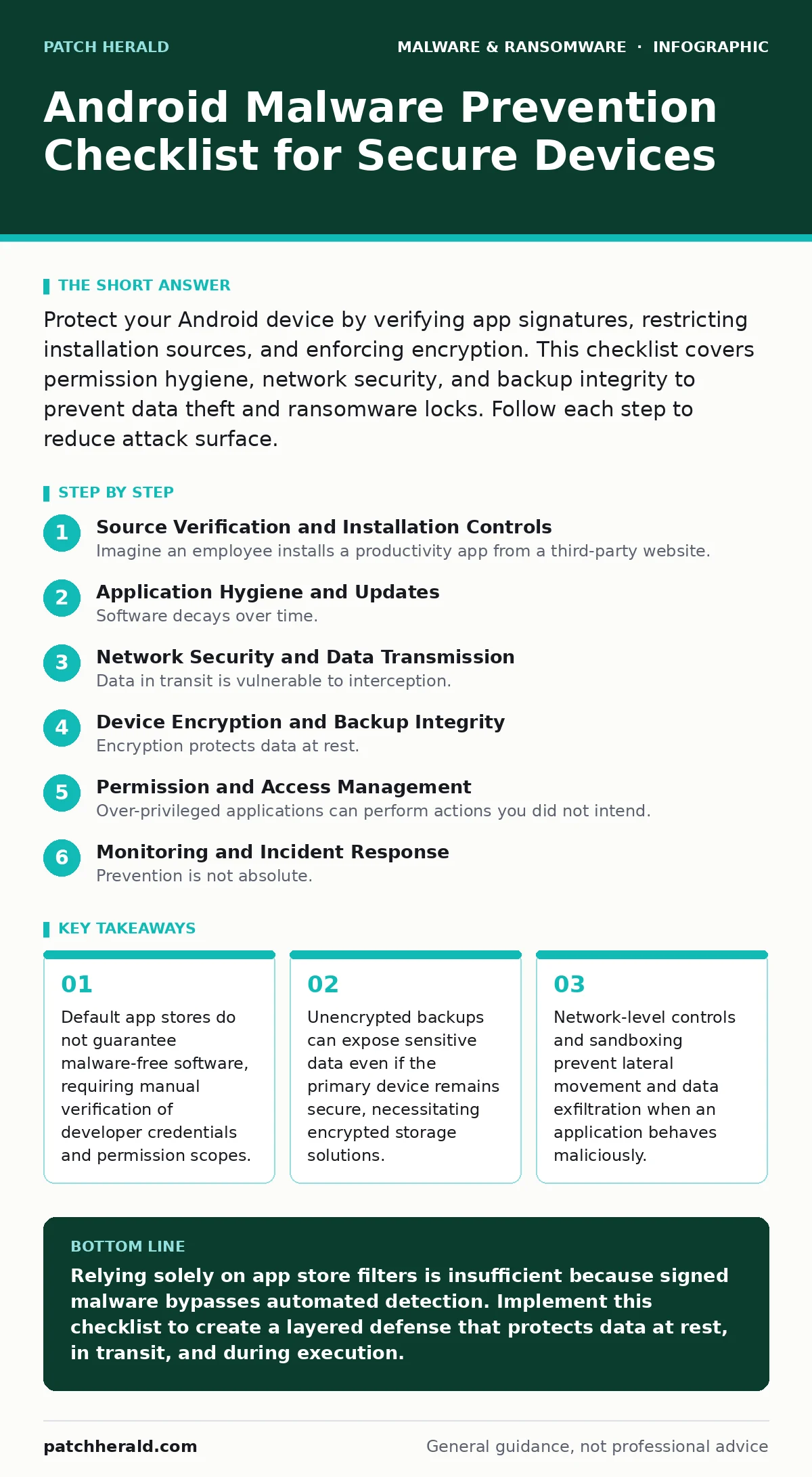
Protect your Android device by verifying app signatures, restricting installation sources, and enforcing encryption. This checklist covers permission hygiene, network security, and backup integrity to prevent data theft and ransomware locks. Follow each step to reduce attack surface.
Source Verification and Installation Controls
Imagine an employee installs a productivity app from a third-party website. The app functions normally but steals credentials. You must control where software comes from to stop this.
- Disable "Install from Unknown Sources": This setting allows apps to bypass Google Play Protect. Keeping it disabled forces all installations through the verified store, which scans for known threats.
- Verify Developer Signatures: Check the digital signature of the app before installing. A mismatched signature indicates the app has been tampered with or is an impersonation of a legitimate tool.
- Audit App Permissions: Review what data an app requests. If a flashlight app asks for contact access, it violates the principle of least privilege and likely contains spyware or adware.
Application Hygiene and Updates
Software decays over time. Unpatched applications contain known vulnerabilities that malware exploits to gain deeper system access. You must manage the lifecycle of every installed program.
- Enable Auto-Updates for System and Apps: Automatic updates patch security holes before attackers can widely exploit them. Manual updates are often delayed, leaving the device exposed to newly discovered flaws.
- Remove Unused Applications: Dormant apps still run background services and hold permissions. Removing them reduces the attack surface. Fewer apps mean fewer potential entry points for malware or trojans.
- Check for Fake Antivirus Software: Legitimate security tools do not demand immediate payment via pop-ups. Scareware tricks users into installing malicious software disguised as protection. If an app warns of imminent threats, uninstall it immediately.
Network Security and Data Transmission
Data in transit is vulnerable to interception. Malware often uses network requests to send stolen data to command-and-control servers. You must secure the communication channels your device uses.
- Use HTTPS-Only Mode in Browsers: This forces encrypted connections to websites. Without encryption, attackers on the same network can read your traffic. This prevents man-in-the-middle attacks that inject malware into web pages.
- Disable Automatic Wi-Fi Connections: Connecting to open networks exposes your device to local network attacks. Manual connection ensures you only join trusted networks, reducing the risk of rogue access points.
- Enable Network Sandboxing: This isolates app network traffic. Even if one app is compromised, it cannot easily communicate with other apps or the main system, containing the breach.
Device Encryption and Backup Integrity
Encryption protects data at rest. If a device is lost or stolen, encryption ensures the data remains unreadable. Backups must also be secure to prevent data recovery by attackers.
- Enable Full Disk Encryption: This encrypts all data stored on the device. Without the correct credentials, the raw data is useless to anyone who gains physical access to the hardware.
- Encrypt Backup Files: Backups stored on cloud services or external drives can be targeted. Unencrypted backups expose your entire data history. Ensure your backup solution uses strong encryption algorithms.
- Verify Backup Integrity: Regularly check that backups complete successfully. Corrupted or incomplete backups can lead to data loss during a ransomware event, forcing you to pay for recovery.
Permission and Access Management
Over-privileged applications can perform actions you did not intend. Managing permissions tightly limits what malware can do even if it gains execution rights on your device.
- Restrict Location Access: Apps should only access location when in use. Constant background location tracking can reveal your habits and physical security patterns to attackers.
- Limit Notification Access: Apps with notification access can read sensitive information displayed on your lock screen. Grant this only to essential system apps to prevent data leakage.
- Review Storage Permissions: Modern Android versions restrict direct storage access. Ensure apps only access necessary files. Broad storage access allows malware to scan and exfiltrate documents.
See also: Drive-By Downloads Explained: Mechanics, Risks, and Silent Prevention · Software Restriction Policies: 8 Practices to Stop Execution
Monitoring and Incident Response
Prevention is not absolute. You must have a plan to detect and respond to compromises quickly. Early detection limits damage and reduces recovery time.
- Monitor Battery Usage Spikes: Malware often runs hidden processes that drain battery. Unexplained battery drain can indicate a background miner or data exfiltration tool. Investigate apps with high battery consumption.
- Check for Unknown Processes: Use developer options to view running processes. Unknown or hidden processes may indicate rootkits or other persistent threats that standard security scans miss.
- Know How to Remove Malware: Familiarize yourself with safe mode and factory reset procedures. If malware persists, a factory reset is the most reliable way to ensure complete removal, as detailed in guides on removing malware from an Android phone.
Advanced Protections and Policy Enforcement
For higher security needs, additional controls provide layered defense. These measures add friction but significantly reduce the risk of sophisticated attacks.
- Implement Software Restriction Policies: If managing multiple devices, use enterprise management tools to enforce app allowlists. This prevents users from installing unauthorized or risky applications.
- Use Browser Isolation for Web Access: For high-risk activities, use isolated browsing environments. This prevents malicious scripts from executing on your main device, protecting against drive-by downloads.
- Educate on Malicious Documents: Phishing emails often contain malicious documents. Users must know to avoid opening unexpected attachments, as these can trigger exploits that install malware without user interaction.
Key takeaways
- Default app stores do not guarantee malware-free software, requiring manual verification of developer credentials and permission scopes.
- Unencrypted backups can expose sensitive data even if the primary device remains secure, necessitating encrypted storage solutions.
- Network-level controls and sandboxing prevent lateral movement and data exfiltration when an application behaves maliciously.
Relying solely on app store filters is insufficient because signed malware bypasses automated detection. Implement this checklist to create a layered defense that protects data at rest, in transit, and during execution.
Frequently asked questions
Can Android malware steal my banking information?
Yes, if malware gains access to your screen, notifications, or clipboard, it can capture one-time passwords and login credentials. Using app-specific passwords and biometric authentication adds a layer of protection that malware cannot easily bypass.
Does factory reset remove all malware?
A factory reset removes most malware by wiping user data and restoring the system to its original state. However, if the malware has gained root access or infected the bootloader, it may survive the reset. Verify the system image integrity after resetting.
How do I know if an app is a trojan?
Trojans often disguise themselves as legitimate software. Look for discrepancies in developer names, excessive permission requests, or poor user reviews. Running malware analysis on suspicious files can reveal hidden malicious behaviors before installation.
Is cloud backup safe from ransomware?
Cloud backups are safer if they are encrypted and versioned. Ransomware cannot encrypt data it cannot access. Ensure your backup solution retains previous versions so you can restore files from before the infection occurred.
How this guide was produced: written by the Patch Herald editorial team with AI assistance, checked against the public references listed below, and reviewed when the facts change. See our editorial policy or report an error.