
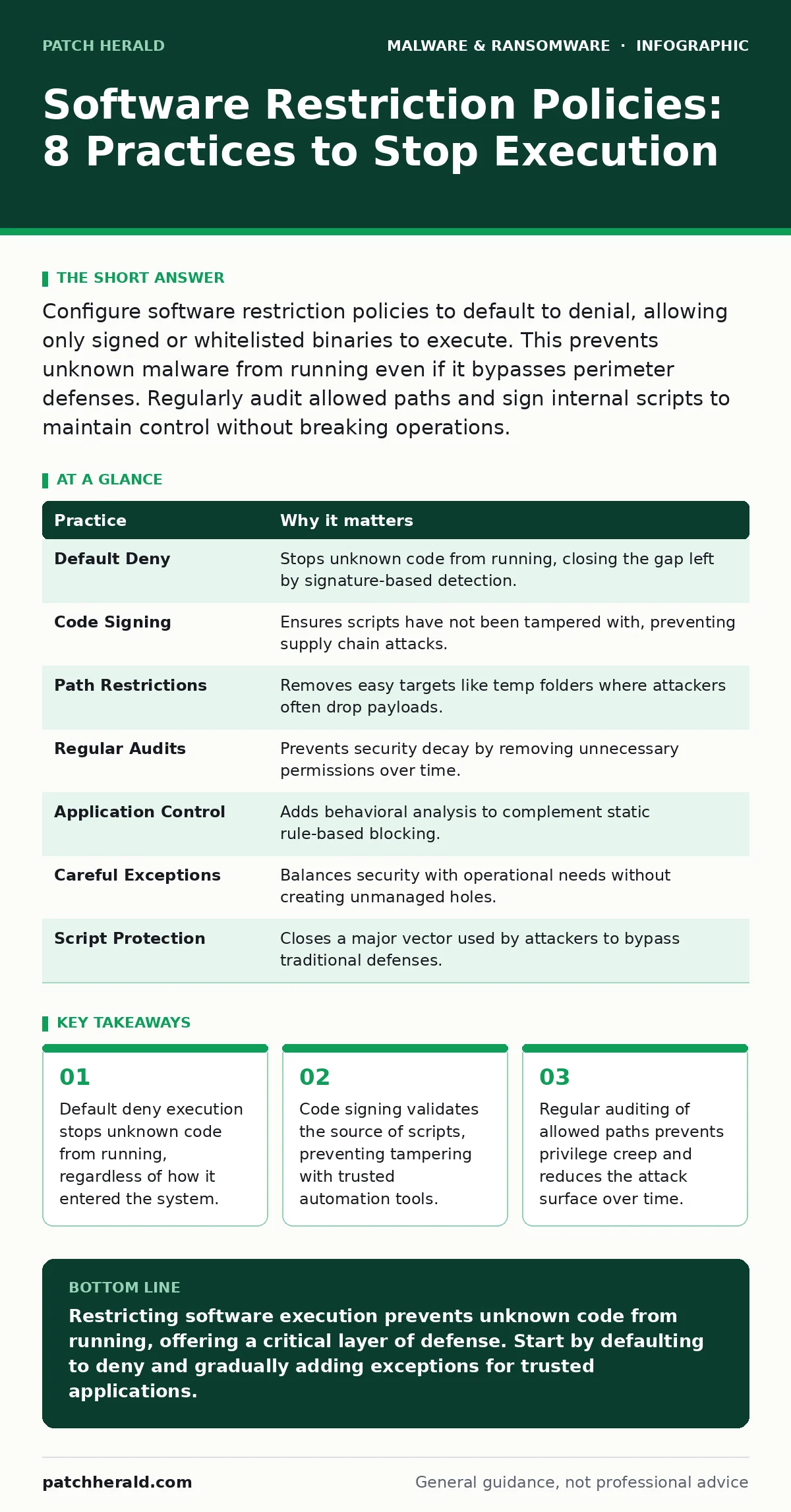
Configure software restriction policies to default to denial, allowing only signed or whitelisted binaries to execute. This prevents unknown malware from running even if it bypasses perimeter defenses. Regularly audit allowed paths and sign internal scripts to maintain control without breaking operations.
Understanding Execution Control
Software restriction policies are a security feature that controls which applications can run on a computer. Unlike traditional antivirus, which scans files for known bad signatures, these policies decide whether a file is allowed to execute based on predefined rules. This approach addresses the reality that new malware often lacks a known signature when it first appears.
Imagine a user downloads a file that appears harmless but contains hidden code. If your system relies solely on detection, that file might run before being flagged. Execution control stops the file from starting in the first place. This shift from detection to prevention is fundamental to modern defense strategies.
1. Default to Deny Execution
The most effective stance is to block all software by default. You then explicitly allow only the applications your business needs to function. This reverses the typical security model where everything is allowed until proven bad. It forces a proactive review of what runs on your network.
Tip: Configure your group policy or endpoint management tool to set the default action to "Disallowed" for all file types and paths. Test this in a isolated environment before applying it broadly to ensure critical business applications still function.
2. Enforce Code Signing for Scripts
Scripts are small programs used for automation, but they are also a common vector for attackers. Without verification, a malicious actor can modify a trusted script to include harmful commands. Code signing attaches a digital certificate to the script, proving its origin and integrity.
Tip: Require that all PowerShell and batch files have a valid digital signature from a trusted publisher. Reject unsigned scripts at the execution level. This prevents attackers from using legitimate scripting engines to run malicious code without your knowledge.
3. Restrict Execution to Known Paths
Limiting where software can run from reduces the chance of accidental or malicious execution. Attackers often drop payloads in temporary folders or user profile directories because these locations are usually writable and executable. By locking down these areas, you remove easy targets.
Tip: Create rules that allow execution only from standard program directories like Program Files or specific application folders. Block execution from temporary directories, the desktop, and user profile folders. This forces legitimate software to be installed in controlled locations.
4. Audit Allowed Paths Regularly
Over time, the list of allowed applications grows as new tools are added to your environment. This expansion creates gaps in your security posture. Old software that is no longer used may still be allowed to run, providing an unnecessary entry point for attackers.
Tip: Schedule a quarterly review of your allowed paths and certificates. Remove entries for software that is no longer in use. Check for any broad permissions that might allow more than necessary, such as entire drive letters being executable.
See also: Removing Malware From a Mac: Benefits, Limits, and Recovery Realities · Virus vs Malware: Which Threat Model Fits Your Business
5. Integrate with Application Control
Software restriction policies are effective, but they can be bypassed by sophisticated attackers who understand the rules. Combining them with application control solutions provides a deeper layer of inspection. These solutions can analyze behavior and context, not just file location or signature.
Tip: Use your existing security stack to complement restriction policies. If you use Microsoft Defender Antivirus, ensure its application control features are enabled to work alongside your manual policies. This creates a defense in depth where one layer compensates for the weaknesses of another.
6. Handle Legitimate Exceptions Carefully
Business operations often require running software that does not fit standard rules. Custom internal tools or legacy applications may lack proper signatures or reside in non-standard folders. Granting exceptions is necessary, but each exception weakens your overall security posture.
Tip: Document every exception you create, including the business reason and the responsible owner. Review these exceptions annually to see if they are still needed. Avoid creating broad exceptions that allow entire folders to run without specific file checks.
7. Protect Against Script-Based Attacks
Attackers frequently use scripts to bypass traditional defenses because scripts are often trusted by the operating system. This is similar to how malicious npm packages can compromise a supply chain by injecting code into trusted repositories. Your policies must treat scripts with the same scrutiny as compiled executables.
Tip: Apply the same restriction rules to script files as you do to executable programs. Do not allow scripts to run from temporary folders or user downloads. Ensure that your policy engine checks the content of scripts, not just their file extension.
8. Test Policies in Isolation
Implementing strict policies can break legitimate business processes if not tested properly. A rule that blocks a critical inventory application can halt operations immediately. Testing allows you to identify conflicts before they impact your users.
Tip: Deploy your new policies to a small group of test machines first. Monitor these systems for any errors or blocked legitimate applications. Adjust your rules based on this feedback before rolling out to the entire organization. This mirrors the careful approach needed when removing malware from a Mac or other systems, where haste can cause data loss.
| Practice | Why it matters |
|---|---|
| Default Deny | Stops unknown code from running, closing the gap left by signature-based detection. |
| Code Signing | Ensures scripts have not been tampered with, preventing supply chain attacks. |
| Path Restrictions | Removes easy targets like temp folders where attackers often drop payloads. |
| Regular Audits | Prevents security decay by removing unnecessary permissions over time. |
| Application Control | Adds behavioral analysis to complement static rule-based blocking. |
| Careful Exceptions | Balances security with operational needs without creating unmanaged holes. |
| Script Protection | Closes a major vector used by attackers to bypass traditional defenses. |
| Isolated Testing | Prevents business disruption by identifying conflicts before wide deployment. |
Balancing Security and Usability
The goal is not to stop all software, but to stop the wrong software. Finding this balance requires understanding your business workflows. Overly restrictive policies frustrate users and lead to workarounds that are less secure.
For example, if a marketing team needs to run a specific analytics tool, blocking it entirely forces them to find an insecure alternative. Instead, create a specific rule for that tool. This approach supports productivity while maintaining security. It is similar to how browser isolation protects users while allowing them to browse the web.
Monitoring and Response
Even with strict policies, threats may still emerge. You must monitor your systems for attempts to bypass these rules. Logging and alerting help you identify when a rule is triggered, indicating a potential attack.
Tip: Configure your security information and event management system to alert on denied execution attempts. Investigate these alerts to understand the source and intent. This data helps you refine your policies and identify new threats before they cause damage. It is a key component of effective disaster recovery plans, ensuring you can respond quickly to incidents.
Conclusion
Software restriction policies provide a powerful layer of defense against execution-based attacks. By defaulting to deny and carefully managing exceptions, you significantly reduce the risk of malware running on your systems. This approach complements other security measures, creating a robust defense strategy.
Remember that security is an ongoing process. Regularly review and update your policies to address new threats and business needs. Stay informed about emerging techniques, such as trojans that mimic legitimate software, and adjust your controls accordingly. This proactive stance ensures your organization remains protected against evolving cyber threats.
Key takeaways
- Default deny execution stops unknown code from running, regardless of how it entered the system.
- Code signing validates the source of scripts, preventing tampering with trusted automation tools.
- Regular auditing of allowed paths prevents privilege creep and reduces the attack surface over time.
Restricting software execution prevents unknown code from running, offering a critical layer of defense. Start by defaulting to deny and gradually adding exceptions for trusted applications.
Frequently asked questions
Do software restriction policies replace antivirus?
No, they complement antivirus. Antivirus detects known threats, while restriction policies prevent unknown code from running. Both are needed for a complete defense.
Will this policy block legitimate updates?
If configured correctly, no. You must allow paths and signatures for update mechanisms. Test thoroughly to ensure updates are not blocked by default deny rules.
How do I handle custom internal tools?
Sign your internal tools with a trusted certificate. Then, create a rule to allow execution of files signed by that certificate. This secures your tools without blocking them.
How this guide was produced: written by the Patch Herald editorial team with AI assistance, checked against the public references listed below, and reviewed when the facts change. See our editorial policy or report an error.