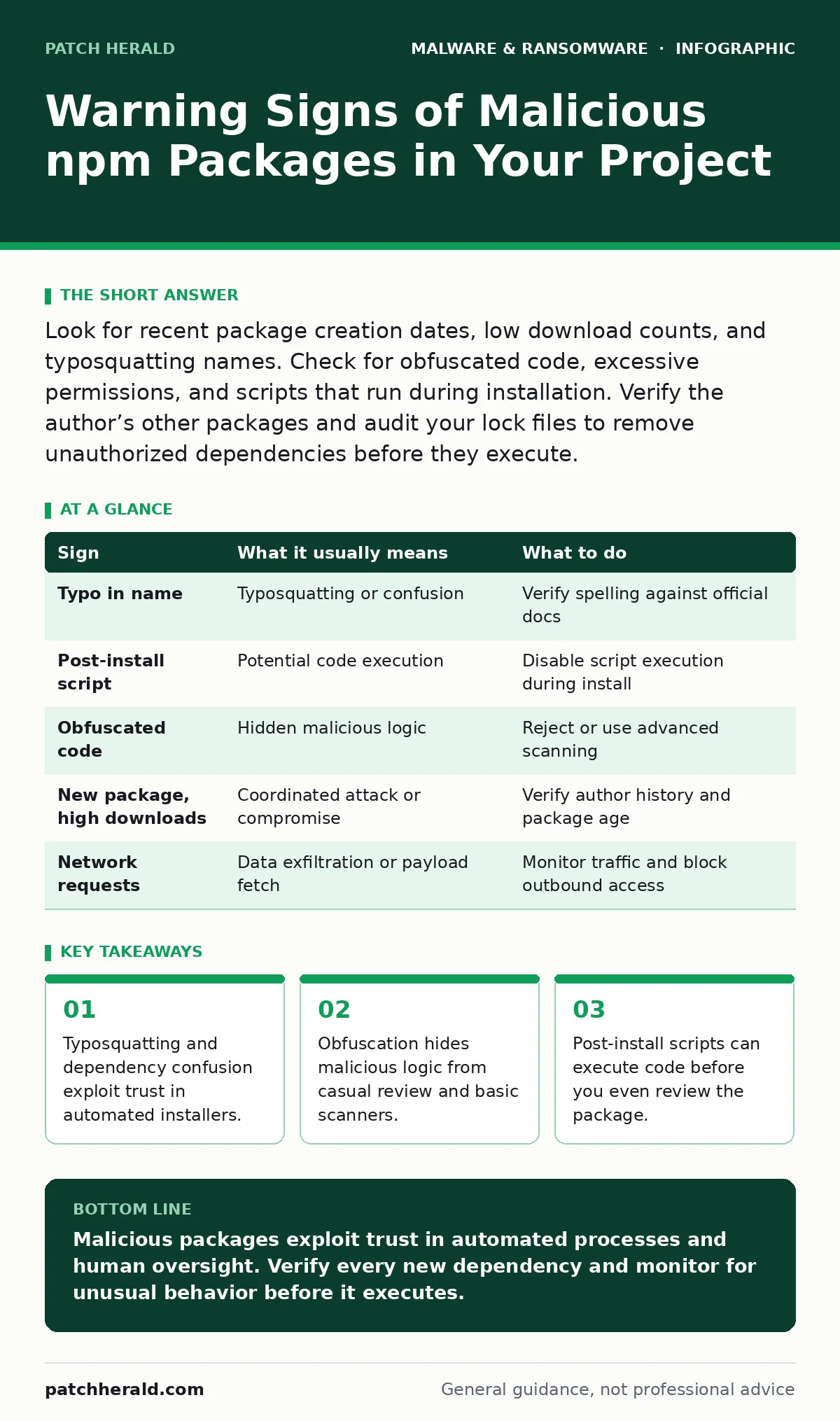
Look for recent package creation dates, low download counts, and typosquatting names. Check for obfuscated code, excessive permissions, and scripts that run during installation. Verify the author’s other packages and audit your lock files to remove unauthorized dependencies before they execute.
Recognizing Typosquatting and Name Impersonation
The most common entry point for malicious code is a package name that looks almost correct. Attackers register names that differ by a single character from popular libraries. You might request express but receive expres or express-js. The package manager resolves the name exactly as typed, installing the impostor without warning.
This technique relies on human error during manual installation or typos in configuration files. It also targets internal networks that connect to public registries. If your build process allows access to the public npm registry, an attacker can publish a package with the same name as an internal library. This is known as dependency confusion.
Always verify the exact spelling of packages before adding them to your project. Do not assume the first search result is the legitimate library. Cross-reference the package name with the official documentation of the library you intend to use.
Detecting Post-Install Execution Scripts
Many legitimate packages use installation scripts to compile native code or set up environment variables. Malicious authors exploit this mechanism to run arbitrary code on your machine. When you run an install command, the package manager executes any script defined in the scripts section of the package manifest.
Look for packages that define preinstall, install, or postinstall scripts. These run before you can inspect the code or before your application starts. If a package downloads a second file from an external server and executes it, treat this as a high-risk behavior. This pattern is common in trojans that need to fetch their payload dynamically.
Disable the execution of these scripts if your build environment does not require them. Most package managers allow you to skip these steps during installation. This prevents the immediate execution of harmful code while you verify the package contents.
Identifying Obfuscation and Code Packing
Legitimate code is usually readable. Malicious packages often use obfuscation to hide their intent. Obfuscation transforms readable code into a complex, unreadable string of characters. This makes it difficult for you to spot malicious logic during a manual review.
If you open a package file and see long strings of hex codes, base64 data, or packed functions, be suspicious. Tools that pack code into a single executable or script are often used to evade static analysis. The code may look like random noise until it runs and unpacks itself in memory.
Do not rely on visual inspection alone for heavily obfuscated packages. Use automated scanning tools that can deobfuscate and analyze the runtime behavior. If a package claims to be a simple utility but contains packed code, reject it. The effort to hide the code suggests malicious intent.
Analyzing Author History and Package Age
New packages with high functionality are a red flag. Legitimate libraries usually have a history of updates and contributions. Check the creation date of the package. If it was published recently but claims to replace an established library, verify its legitimacy.
Examine the author’s profile. Do they have other packages? Are those packages reputable? Attackers often create throwaway accounts to publish a single malicious package. They may also delete the account after the initial surge of downloads. A lack of history or a sparse profile indicates higher risk.
Check the download count relative to the package age. A new package with thousands of downloads in a short time is unusual. It may indicate a coordinated attack or a compromised popular package that has been updated to pull in the malicious dependency.
Monitoring for Unusual Network Requests
Some malicious packages do not execute code immediately. Instead, they wait for the application to start and then make network requests. These requests may send data to an external server or download additional payloads. This behavior can be subtle and hard to detect in a simple code review.
Monitor network traffic during development and testing. If a new package causes unexpected outbound connections, investigate the source. The package may be exfiltrating credentials or configuration files. This type of behavior is common in data theft malware.
Use network analysis tools to track connections made by your application. Block unnecessary outbound traffic from your build servers. This limits the ability of a malicious package to communicate with its command and control server.
See also: Removing Malware From a Mac: Benefits, Limits, and Recovery Realities · Software Restriction Policies: 8 Practices to Stop Execution
Auditing Dependencies and Lock Files
Your project depends on many packages, which depend on others. This creates a deep tree of dependencies. A malicious package can hide deep within this tree, installed by a legitimate library. You may not see it in your direct dependencies list.
Regularly audit your lock file. This file records the exact versions of every package in your tree. Compare it against a known good state. Look for new entries or version changes that you did not authorize. Automated tools can help identify packages with known vulnerabilities or malicious behavior.
Implement a process to review changes in your lock file before merging them into your main branch. This adds a human check to the automated installation process. It catches unauthorized dependencies before they reach production.
Responding to a Suspected Malicious Package
When you identify a suspicious package, stop the installation process immediately. Do not run the application that includes the package. Isolate the affected system to prevent any potential network communication. Check other systems that may have received the same update.
Remove the package from your project. Delete it from your lock file and clear your local cache. Install a verified version of the legitimate package if one exists. Update your security policies to block the malicious package name and version.
Review your access controls. Ensure that only trusted contributors can modify your project dependencies. Consider using a private registry to mirror only approved packages. This reduces the risk of pulling in new malicious packages from the public registry.
| Sign | What it usually means | What to do |
|---|---|---|
| Typo in name | Typosquatting or confusion | Verify spelling against official docs |
| Post-install script | Potential code execution | Disable script execution during install |
| Obfuscated code | Hidden malicious logic | Reject or use advanced scanning |
| New package, high downloads | Coordinated attack or compromise | Verify author history and package age |
| Network requests | Data exfiltration or payload fetch | Monitor traffic and block outbound access |
Key takeaways
- Typosquatting and dependency confusion exploit trust in automated installers.
- Obfuscation hides malicious logic from casual review and basic scanners.
- Post-install scripts can execute code before you even review the package.
Malicious packages exploit trust in automated processes and human oversight. Verify every new dependency and monitor for unusual behavior before it executes.
Frequently asked questions
How do I remove a malicious npm package?
Use your package manager to uninstall the package, delete it from your lock file, and clear the local cache to prevent reinstallation.
Can npm packages steal my code?
Yes, post-install scripts can read and exfiltrate files from your project directory before you even run your application.
Is npm inherently insecure?
No, but its open nature allows anyone to publish packages. Security relies on verification and monitoring of dependencies.
Should I use a private registry?
Yes, a private registry allows you to control which packages are available to your team, reducing exposure to public threats.
How this guide was produced: written by the Patch Herald editorial team with AI assistance, checked against the public references listed below, and reviewed when the facts change. See our editorial policy or report an error.