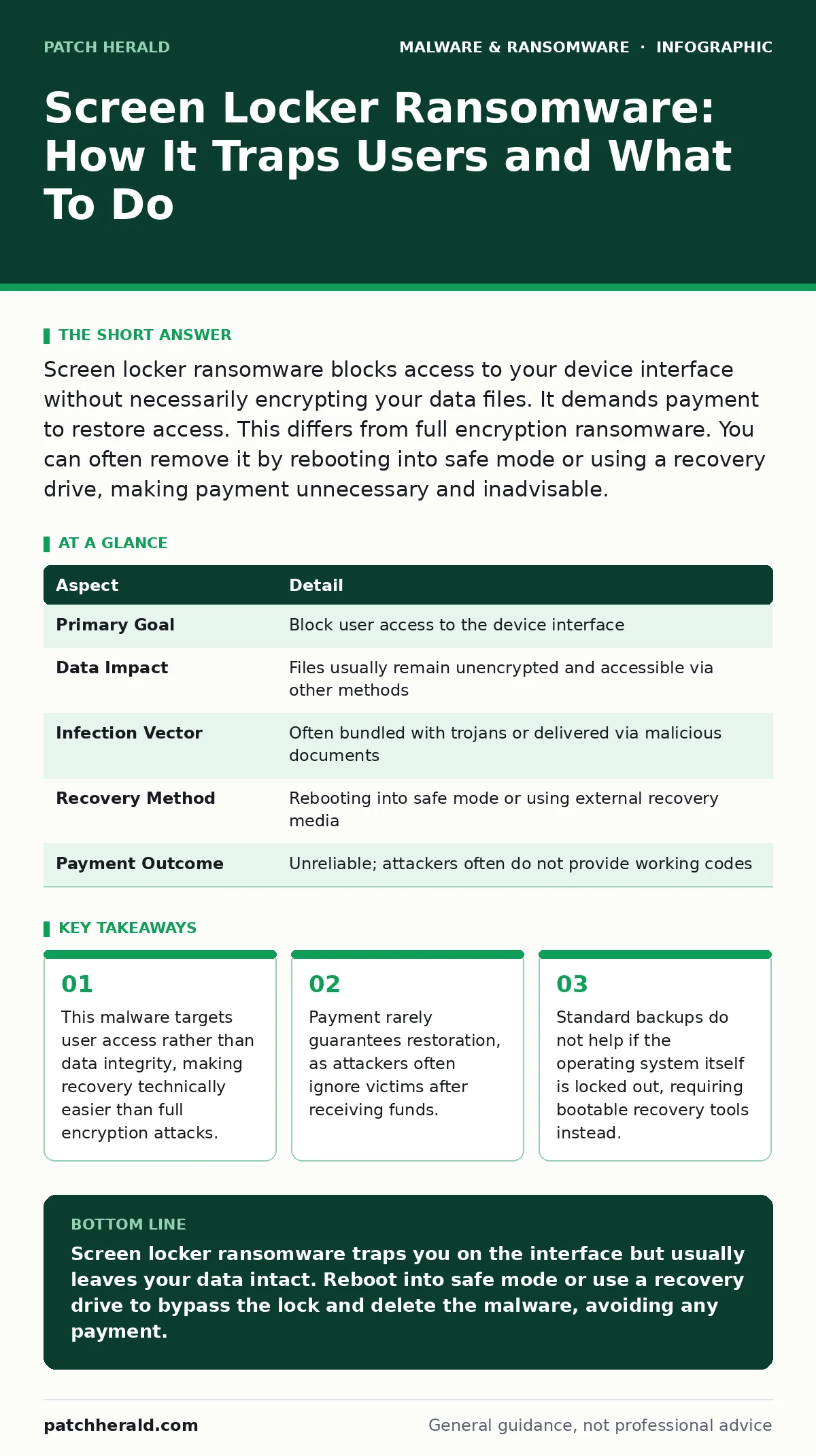
Screen locker ransomware blocks access to your device interface without necessarily encrypting your data files. It demands payment to restore access. This differs from full encryption ransomware. You can often remove it by rebooting into safe mode or using a recovery drive, making payment unnecessary and inadvisable.
The Door Jam Analogy
Imagine a burglar who does not steal your furniture but instead jams the front door shut with a complex deadbolt. He leaves a note saying he will remove the bolt for a fee. Your belongings are safe inside, but you cannot enter your own home. Screen locker ransomware operates on this same principle. It does not necessarily hide or scramble your files. Instead, it blocks the user interface, preventing you from logging in or using the computer.
The threat lies in the disruption of access, not the destruction of data. This distinction matters because it changes how you respond. When files are encrypted, you need backups to restore them. When the screen is locked, you need a way to bypass the operating system’s login process. Understanding this difference prevents panic and leads to the correct technical response.
At a Glance
| Aspect | Detail |
|---|---|
| Primary Goal | Block user access to the device interface |
| Data Impact | Files usually remain unencrypted and accessible via other methods |
| Infection Vector | Often bundled with trojans or delivered via malicious documents |
| Recovery Method | Rebooting into safe mode or using external recovery media |
| Payment Outcome | Unreliable; attackers often do not provide working codes |
How the Lockdown Happens
This malware typically arrives attached to another threat. It rarely infects a system on its own. You might download a seemingly harmless file, such as a malicious document that contains embedded scripts. Once executed, these scripts drop the screen locker component. The malware then modifies system settings to display a full-screen overlay. This overlay mimics a legitimate system alert, often claiming law enforcement involvement or security violations.
The overlay captures input, preventing you from closing the window or accessing the task manager. It displays a timer and a demand for payment, usually in cryptocurrency. The psychological pressure is the primary weapon. The technical mechanism is often surprisingly fragile. Many versions simply change the registry keys that control the desktop environment or launch a persistent process that sits above all other windows. Because it does not encrypt your hard drive, your data remains intact, but your ability to interact with it is suspended.
Who Gets Locked Out
This form of ransomware targets anyone who interacts with a graphical user interface. It is particularly effective against users who lack administrative privileges or technical knowledge. If you cannot reboot the machine into a diagnostic mode, you are trapped. Small organizations are frequent targets because they often lack dedicated IT staff to handle such incidents quickly.
Individuals are also at risk, especially those who browse the web or open emails without scrutiny. The malware does not discriminate based on the size of the organization, but it favors environments where downtime is costly and immediate. If you rely on a single device for critical work and have no backup access method, you are vulnerable. The attacker knows that your urgency creates a willingness to pay.
Common Forms and Variations
There are two main categories of screen lockers. The first is the fake law enforcement alert. These screens use official-looking logos and language to create fear. They claim your computer has been seized due to criminal activity. The second category is the pure technical lockout. These do not use fear tactics as heavily. Instead, they simply block the login screen or require a specific key to proceed.
Some variants target specific operating systems. Windows is the most common target due to its market share. However, macOS and Linux systems are not immune. On a Mac, the malware might lock the user account or encrypt the login keychain. If you are dealing with removing malware from a Mac, the process differs from Windows, often requiring recovery mode to delete the malicious files. Regardless of the platform, the goal remains the same: deny you access to your own machine.
See also: Trojans: Definition, Mechanics, and How to Spot the Deception · Removing Malware From a Mac: Benefits, Limits, and Recovery Realities
What People Usually Get Wrong
Many users assume that screen lockers encrypt their data. This is a dangerous misconception. If you believe your files are gone, you might rush to pay, thinking it is the only way to recover them. In reality, your files are likely sitting there, untouched. The lock is on the door, not the contents of the room.
Another common error is attempting to negotiate with the attacker. There is no customer service on the other end. The entity demanding payment is anonymous and unaccountable. Paying does not guarantee you will receive the unlock code. Even if you do, the attacker may have other malware on your system that remains active. You might pay to unlock the screen, only to find your data stolen later.
Reducing the Risk of Lockout
Prevention focuses on stopping the initial infection. Since screen lockers often arrive via trojans or downloaded scripts, controlling what runs on your computer is vital. Implement software restriction policies to allow only trusted applications to execute. This prevents unknown scripts from launching in the background. Keep your operating system and applications updated to patch vulnerabilities that attackers exploit.
User education is equally important. Teach users to recognize deceptive alerts. Legitimate system errors do not demand immediate payment or threaten legal action. If a screen appears with such demands, it is almost certainly malicious. Use browser isolation to separate web browsing from your core system. This ensures that if you click a bad link, the malware cannot reach your operating system.
Recovery Without Payment
If you encounter a screen locker, do not pay. Instead, focus on bypassing the lock. For Windows systems, rebooting into Safe Mode often prevents the malware from starting. From Safe Mode, you can delete the malicious files or restore system settings. If Safe Mode is blocked, use a bootable recovery drive. This allows you to access your files from an external operating system.
Copy your critical data to an external drive. Then, reinstall the operating system. This is a clean slate approach that ensures all malware components are removed. For Mac users, boot into Recovery Mode and use Terminal to delete the malicious files. If you have a disaster recovery plan, follow its steps for system restoration. This process takes time, but it is free and secure. Relying on Microsoft Defender Antivirus or other standard security tools can help detect and remove the malware after you regain access.
Key takeaways
- This malware targets user access rather than data integrity, making recovery technically easier than full encryption attacks.
- Payment rarely guarantees restoration, as attackers often ignore victims after receiving funds.
- Standard backups do not help if the operating system itself is locked out, requiring bootable recovery tools instead.
- Prevention relies heavily on application control and user awareness regarding deceptive system alerts.
Screen locker ransomware traps you on the interface but usually leaves your data intact. Reboot into safe mode or use a recovery drive to bypass the lock and delete the malware, avoiding any payment.
Frequently asked questions
Can I recover my files if the screen is locked?
Yes, because the files are typically not encrypted. You can access them by booting into safe mode or using an external recovery drive.
Is paying the ransom worth the risk?
No, payment does not guarantee restoration and often leads to further exploitation. Technical recovery is free and more reliable.
How do I know if it is a screen locker or encryption ransomware?
Screen lockers block the interface with a full-screen overlay. Encryption ransomware changes file extensions and makes files unreadable.
Can antivirus software remove screen lockers?
Standard antivirus may not remove active screen lockers while they are running. You often need to boot into safe mode to allow the antivirus to scan and clean the system.
How this guide was produced: written by the Patch Herald editorial team with AI assistance, checked against the public references listed below, and reviewed when the facts change. See our editorial policy or report an error.