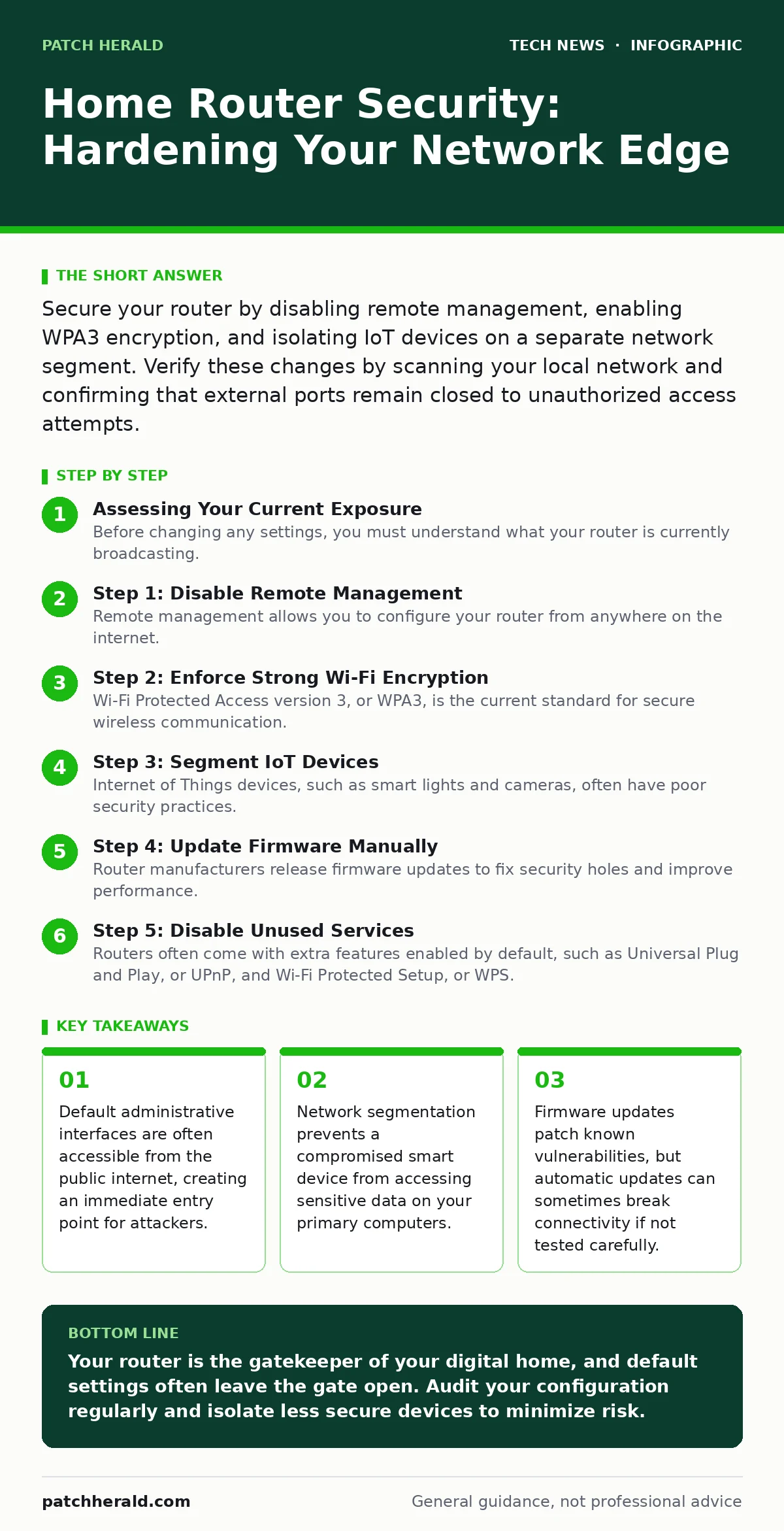
Secure your router by disabling remote management, enabling WPA3 encryption, and isolating IoT devices on a separate network segment. Verify these changes by scanning your local network and confirming that external ports remain closed to unauthorized access attempts.
Assessing Your Current Exposure
Before changing any settings, you must understand what your router is currently broadcasting. Many devices reveal detailed information about their operating system, model number, and connected clients to anyone who requests it. This data helps attackers select specific exploits that target known weaknesses in your hardware.
Imagine an attacker walking past your home with a laptop. They do not need to hack your Wi-Fi password to see that your router is running outdated software. They simply listen to the beacon frames your router broadcasts to advertise its presence. These frames often contain the service set identifier and the manufacturer’s identification code.
If you see devices you do not recognize, your network is already compromised. If you see only your devices, you still need to verify that the router is not exposing its management interface to the outside world.
Step 1: Disable Remote Management
Remote management allows you to configure your router from anywhere on the internet. This feature is convenient for troubleshooting but dangerous if left enabled. It opens a direct pathway to your administrative panel, bypassing the local network firewall.
Log into your router’s web interface. Look for settings labeled "Remote Management," "WAN Access," or "Internet Access." Disable this feature entirely. If you must configure the router while away, use a secure virtual private network connection to your home network instead of exposing the admin port directly.
To verify this change, use an online port scanning tool from a device outside your home network. The scan should show that the administrative ports are closed or filtered. If the ports are open, your router is still accepting connections from the public internet, which is a significant security risk.
Step 2: Enforce Strong Wi-Fi Encryption
Wi-Fi Protected Access version 3, or WPA3, is the current standard for secure wireless communication. It replaces the older WPA2 protocol, which has known vulnerabilities that allow attackers to recover passwords through offline dictionary attacks. WPA3 uses a handshake process that makes it much harder for an observer to capture and crack the authentication credentials.
Navigate to the wireless security settings on your router. Select WPA3-Personal if all your devices support it. If you have older devices that cannot connect to WPA3, you may need to use WPA2/WPA3 mixed mode, but this reduces the overall security posture. Avoid WEP or WPA, as these are broken and should never be used.
After changing the encryption type, disconnect all your devices and reconnect them using the new security parameters. If a device fails to connect, check its documentation for driver updates or compatibility issues. Do not revert to weaker encryption protocols just to maintain compatibility with a single obsolete device.
Step 3: Segment IoT Devices
Internet of Things devices, such as smart lights and cameras, often have poor security practices. They may use hardcoded passwords or lack the ability to receive security patches. Connecting these devices to the same network as your laptop or phone allows an attacker who compromises the smart device to pivot to your more valuable assets.
Create a separate SSID for your IoT devices. Many modern routers allow you to set up a "Guest Network" or "IoT Network" that is isolated from the main network. Devices on this isolated network can access the internet but cannot communicate with devices on your primary network.
Move all low-security devices to this new network. Keep your computers, phones, and tablets on the primary network. This segmentation limits the blast radius of a security breach. If a smart bulb is compromised, the attacker cannot scan your file server or intercept your banking traffic.
Step 4: Update Firmware Manually
Router manufacturers release firmware updates to fix security holes and improve performance. While automatic updates are convenient, they can sometimes introduce bugs that break your connection. Manual updates allow you to verify that the new firmware is stable before applying it to your entire network.
Visit the manufacturer’s support website and download the latest firmware version for your specific model. Compare the version number on the website with the version number displayed in your router’s interface. If they differ, initiate the update process.
During the update, do not power off the router or disconnect it from the internet. An interrupted update can brick the device, rendering it unusable. After the update completes, the router will reboot. Log back in and verify that the version number has changed. Check that your previous settings, such as Wi-Fi passwords and port forwards, were preserved.
See also: Load Balancers Types: How Traffic Distribution Protects Your Systems · Difference Between Operating System and Kernel: Core Functions Explained
Step 5: Disable Unused Services
Routers often come with extra features enabled by default, such as Universal Plug and Play, or UPnP, and Wi-Fi Protected Setup, or WPS. UPnP allows devices to automatically open ports on your firewall, which can be exploited by malware to expose services to the internet. WPS allows users to connect devices by pressing a button, but it has a known vulnerability that allows attackers to brute-force the PIN.
Locate the UPnP settings in your router interface and disable them. If you use applications that require port forwarding, such as online gaming or remote desktop, configure static port forwards manually instead of relying on UPnP. This gives you control over exactly which ports are open.
Disable WPS as well. This removes the convenience of one-touch pairing but eliminates a significant attack surface. Verify these changes by checking the status page of your router. UPnP should show as disabled, and WPS should be turned off.
Verification Checklist
To ensure your router is secure, run through this checklist periodically.
- Remote management is disabled.
- WPA3 encryption is active on the main network.
- IoT devices are on a separate, isolated network.
- Firmware is up to date.
- UPnP and WPS are disabled.
- Administrative password is complex and unique.
Ongoing Maintenance
Security is not a one-time task. New vulnerabilities are discovered regularly, and new devices are added to homes. You should review your router settings every few months. Check for new firmware updates and review the list of connected devices for any unfamiliar entries.
Consider the implications of remote work security if you allow employees to connect to your home network for business tasks. Their devices may introduce corporate data risks or malware. Ensure that your network segmentation remains effective as your environment changes.
For more details on protecting individual devices, refer to our guide on laptop security. Understanding how endpoints interact with the network helps you build a more resilient environment. Regular maintenance ensures that your home network remains a safe foundation for your digital life.
Key takeaways
- Default administrative interfaces are often accessible from the public internet, creating an immediate entry point for attackers.
- Network segmentation prevents a compromised smart device from accessing sensitive data on your primary computers.
- Firmware updates patch known vulnerabilities, but automatic updates can sometimes break connectivity if not tested carefully.
Your router is the gatekeeper of your digital home, and default settings often leave the gate open. Audit your configuration regularly and isolate less secure devices to minimize risk.
Frequently asked questions
Can I use my router as a firewall?
Yes, modern routers include basic firewall capabilities that block unsolicited incoming traffic from the internet. However, they do not inspect the content of the traffic for malware, so you still need security software on your devices.
How often should I change my Wi-Fi password?
You do not need to change your Wi-Fi password regularly if it is long, complex, and unique. Change it only if you suspect it has been compromised or if you move to a new home.
Is a guest network necessary if I have no guests?
Yes, a guest network serves as an ideal quarantine zone for IoT devices that do not require access to your main network resources. It provides an extra layer of isolation for potentially vulnerable hardware.
What happens if my router firmware update fails?
A failed update can leave your router in an unusable state, known as being bricked. You may need to perform a hardware reset using a physical button on the device to restore factory settings.
How this guide was produced: written by the Patch Herald editorial team with AI assistance, checked against the public references listed below, and reviewed when the facts change. See our editorial policy or report an error.