
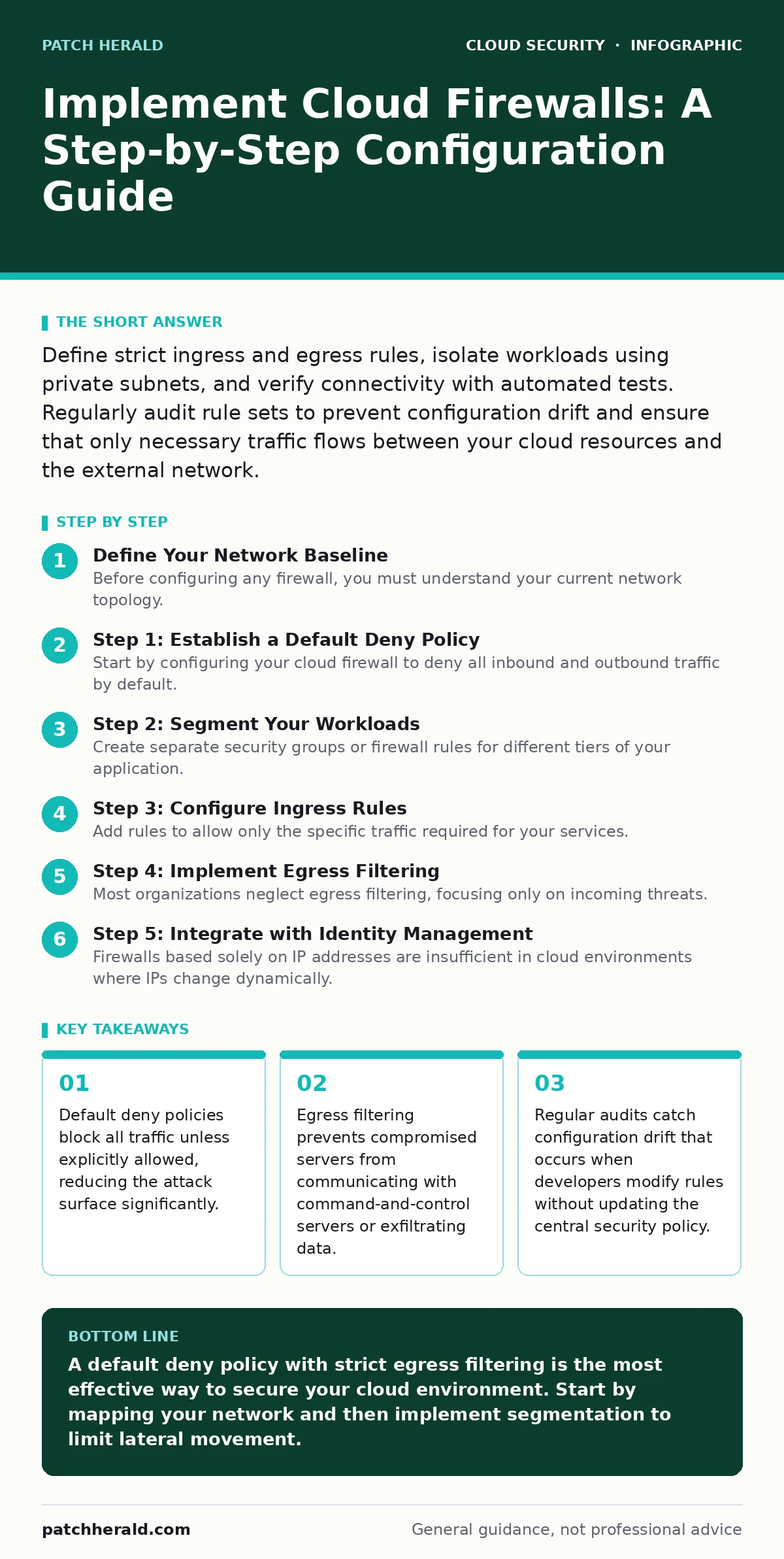
Define strict ingress and egress rules, isolate workloads using private subnets, and verify connectivity with automated tests. Regularly audit rule sets to prevent configuration drift and ensure that only necessary traffic flows between your cloud resources and the external network.
Define Your Network Baseline
Before configuring any firewall, you must understand your current network topology. Cloud environments differ from on-premises infrastructure because security boundaries are virtual and often invisible. You need to map every service, database, and application endpoint. Identify which services require public access and which must remain internal. This mapping prevents accidental exposure during the rollout phase.
Step 1: Establish a Default Deny Policy
Start by configuring your cloud firewall to deny all inbound and outbound traffic by default. This approach ensures that no traffic flows unless you explicitly create a rule to allow it. Many cloud platforms default to allowing all outbound traffic, which is a significant risk. Change this setting immediately. A default deny posture forces you to define exactly what is needed, rather than guessing what might be harmful.
You know this step worked when you can no longer ping external hosts from your cloud instances unless you add a specific allow rule. Test this by attempting to reach a public DNS server. The request should fail.
Step 2: Segment Your Workloads
Create separate security groups or firewall rules for different tiers of your application. Isolate your web servers, application servers, and databases into distinct network segments. This segmentation limits lateral movement if an attacker compromises one component. For example, your database should only accept connections from your application servers, not from the internet or other unrelated services.
Verify this by attempting to connect to your database from a web server instance. The connection should be rejected. Then, allow the connection from your application server. The connection should succeed. This confirms that segmentation is active and effective.
Step 3: Configure Ingress Rules
Add rules to allow only the specific traffic required for your services. For web applications, this typically means allowing HTTP and HTTPS traffic on standard ports. Avoid using broad ranges like 0.0.0.0/0 unless absolutely necessary for public-facing services. Instead, restrict source IPs to known partners or use a web application firewall to filter malicious requests before they reach your cloud firewall.
Check this by scanning your public endpoints. Only the ports you explicitly opened should respond. Any other port should time out or be refused. This confirms that your ingress rules are precise.
Step 4: Implement Egress Filtering
Most organizations neglect egress filtering, focusing only on incoming threats. However, egress filtering is critical for preventing data exfiltration and blocking communication with malicious external servers. Configure rules to restrict outbound traffic to only necessary destinations. For instance, a database server should not need to initiate connections to external websites.
Test this by attempting to download a file from an external website on a database server. The request should fail. This confirms that your egress rules are active and preventing unauthorized outbound connections.
See also: Zero Trust Mistakes That Break Security and How to Fix Them · Remote Desktop Security Mistakes: Fix These 7 Common Errors
Step 5: Integrate with Identity Management
Firewalls based solely on IP addresses are insufficient in cloud environments where IPs change dynamically. Integrate your firewall with your identity provider to enforce access controls based on user or service identity. This ensures that only authorized entities can access your resources, regardless of their IP address. See our guide on cloud IAM policies for details on managing these identities effectively.
Verify this by attempting to access a resource with an unauthorized identity. Access should be denied. Then, access the same resource with an authorized identity. Access should be granted. This confirms that identity-based controls are working.
Step 6: Enable Logging and Monitoring
Turn on logging for all firewall rules. Logs provide visibility into traffic patterns and help detect anomalies. Configure alerts for denied traffic that matches suspicious patterns, such as multiple connection attempts from a single IP address. Regularly review these logs to identify potential threats or misconfigurations.
You know this step worked when you can see a record of every allowed and denied connection in your logging dashboard. Search for a specific IP address and confirm that its traffic is recorded. This ensures that you have the data needed for incident response.
Verify and Maintain Your Configuration
After implementation, conduct a thorough verification process. Use automated tools to scan your firewall rules against your baseline. Check for overly permissive rules, unused rules, or conflicts between rules. Regularly update your rules to reflect changes in your application architecture. Configuration drift occurs when rules become outdated or inconsistent with your security policy.
- Audit all firewall rules quarterly.
- Remove unused rules immediately.
- Review logs for anomalies weekly.
- Update rules after any application changes.
- Test incident response procedures annually.
See our guide on cloud attack surface management for strategies to reduce exposure further. Also, refer to shadow IT detection methods to ensure all cloud resources are accounted for.
Key takeaways
- Default deny policies block all traffic unless explicitly allowed, reducing the attack surface significantly.
- Egress filtering prevents compromised servers from communicating with command-and-control servers or exfiltrating data.
- Regular audits catch configuration drift that occurs when developers modify rules without updating the central security policy.
A default deny policy with strict egress filtering is the most effective way to secure your cloud environment. Start by mapping your network and then implement segmentation to limit lateral movement.
Frequently asked questions
Do I need a firewall if I use a cloud provider's built-in security?
Yes, cloud providers offer infrastructure security, but you are responsible for securing your workloads and network configurations. Built-in tools require proper configuration to be effective.
How often should I review my firewall rules?
Review your rules at least quarterly and immediately after any significant infrastructure change. Regular audits prevent configuration drift and ensure compliance.
Can I use IP whitelisting for all access?
IP whitelisting is useful for static IPs, but it fails for dynamic cloud environments. Combine IP restrictions with identity-based access controls for better security.
What is the biggest risk with cloud firewalls?
Misconfiguration is the biggest risk. Overly permissive rules or neglected egress filtering can expose your data to external threats. Regular audits mitigate this risk.
How this guide was produced: written by the Patch Herald editorial team with AI assistance, checked against the public references listed below, and reviewed when the facts change. See our editorial policy or report an error.